Latest Posts

Thursday, 29 August 2013

Can BBM for android and ios cause problem for others ?

 
The well-documented wait for the BBM service for Android and iOS devices is creating a fair amount of attention at the moment. Many people are eager to start using BBM cross-platform, and we know from the many comments we’ve received that the release can’t come soon enough for some. However, is it the case that the BBM app for Android and iOS could simply complicate things?
BlackBerry has promised the BBM app for iOS and Android by the end of September, and there have been several false starts and fake apps leading people to think it has already arrived. Android and iOS BlackBerry Messenger beta user guides with features recently emerged that seemed to indicate we were a step closer to the launch of the apps on Google Play and the App Store

You may also like:

While we wait though, it’s given us time to wonder if BBM for Android and iOS is simply too late. BlackBerry is going through struggling times, and some reports recently suggested that BBM is one of the only real assets the company has left. However, if the Android and iOS apps had been released much sooner, BBM on those platforms could already have established its place in the market. Instead, it will have to compete against alternative messaging apps such as WeChat and WhatsApp.

The other thing to consider is that BBM for Android or iOS could just confuse the picture further. However, in 2011 Apple introduced iMessage for the iOS platform, and Android and Windows Phone platforms both have their own instant messaging software.
Not only do users have these services, but many app alternatives on different platforms also exist. Two of these are WeChat and WhatsApp as we mentioned earlier, but also Facebook Messenger, TextMe, Hangouts and more. If you have a large circle of friends and acquaintances all using different messaging services, rather than making communication easier it can simply become more complicated.
 

With many smartphone plans now including text messaging, BBM is not as pertinent as it once was, and we wonder if it will prove as popular as many people seem to think. BBM for Android and iOS is clearly not too much further away now, but we feel it may not be as relevant as it would have done if BlackBerry had introduced it far earlier.

Are you waiting for the Android and iOS BBM apps to arrive?
more »

Tuesday, 27 August 2013

what to expect from Android 5.0 User interface ?

Much waiting for the latest version of the Android 5.0 key lime pie
but the rumours are rolling out and much better is expected from them.
 what expected from the android 5.0 UI  are given below
Performance Profiles:
-Different profiles for different times of the day; I.E. Sleeping, gaming, unwanted phone calls
Better multiple device support:
-Going from device to device will be easier in maintaining functionality; If you buy an app at the Playstore it will be on all your other devices as well.
Better Line-drawing keyboard:
-Many Android users are familiar with the rather hard to use Swype software as it can be horrible at predicting words, but Google plans to make a much better and easier version of the software
Video chat app:
-Already installed video chatting app
Multi-contact select:
-Finally relief in sending texts to multiple friends, no longer do you have to search for the names individually


Cross-device SMS sync
-you will be able to back up your SMS to your Gmail and be able to access it on multiple devices
more »

How do you set up a shared album on facebook?

On Monday, the social-network giant announced the new feature, which lets up to 50 users contribute pictures to the same album (this does not apply to albums for Pages).
How do you set up a shared album? It's actually quite simple, and only requires a few extra steps.

After you log in to Facebook, click on the "Photos" tab to the far left of the News Feed or at the top of your profile page. You will be taken to your stream of photos, where you will see a "Create Album" tab in the top right-hand corner; click that.
Select the photos that you want to upload from your computer (you can always come back, and upload additional pictures later). As with any other photo album, you'll be prompted to fill out information about the album you're creating. Feel free to include as little or as much about the album as you want. In order to use the shared albums feature, you need to click the "Post Photos" button in the lower right-hand corner. 


At the top of the next screen, you will have the option to make the album a shared album by clicking on the button in the upper left-hand corner. You will then be able to search for, and add up to 50 of your Facebook friends as "contributors" to the album. This is also where you'll want to take a moment to explore the album's privacy settings.  A shared album has three settings: public, friends of contributors and contributors only. You can also decide whether you want to allow contributors to invite others to the album. Deselecting the blue check box below the list of contributors will ensure that the album creator is the only user who is able to invite others to post photos in the album.


if you ever need to go back and make changes to a shared album, you can do that, too. Just open the album, and click on the "Edit" button in the upper right-hand corner. You will then be able to remove or add contributors, change the album title or description, and alter privacy settings. 
more »

Monday, 26 August 2013

How to tweak android to use less data-Tips and tricks


Whether you're actively using them or not, apps love to eat up data. They're checking for updates, running ads, and refreshing your user content in the background. The good intentions are there, but most times, the conveniences these practices bring don't outweigh the depleted data reserves. It's time to tame those apps.

Update apps and download files on Wi-Fi only
Head to the Google Play store and tap Menu > Settings > Auto-update apps. Here, be sure that "Auto-update apps over Wi-Fi only" is selected. You also have the option to choose "Do not auto-update apps," but it's less preferable, since you'll have to remember to update apps manually.

Configure in-app data settings
To give you a fluid experience, many apps ping servers in the background to keep their content updated. For instance, Google+ backs up your photos and videos as they're captured, while Mint can be configured to refresh banking data.
These conveniences are great, but they come at a cost, so dive into the app settings and disable the data-sucking options you don't absolutely need.

Restrict background data
Even apps that don't allow you to fine-tune data settings could still be loading background data. In Ice Cream Sandwich and later versions of Android, one way to find out which ones are guilty is to go to Settings > Data Usage, and scroll down to reveal a list of apps with accompanying data usage stats.
 scroll down to the bottom and check "Restrict background data." 

you may also like: 

Fine-tune sync settings
During the initial phone configuration, you probably opted into account syncing. By default, everything is set to sync, including things like photos, the Play Store, and other Google apps. You don't necessarily need all these items syncing -- especially data-heavy ones like photos.
To adjust sync options, head to Settings > Accounts > Google, and select an account. Here, uncheck the boxes next to the items that don't absolutely need to be synced. Repeat the same process for other accounts.
After that, you can manually sync accounts by visiting their respective apps. 

Temporarily switch off sync
Going out for the night? Sitting at your desk? Prevent your phone from unnecessarily syncing data by disabling syncing, either from the notification bar, or by going to Settings > Data Usage > Menu > uncheck "Auto-sync data."

Monitor data usage
One of the most useful Android features is the Data Usage tool. With it, you can view your monthly activity, see which apps demand the most megabytes, and configure usage warnings. 
Alternatively, Onavo Count offers a similar solution, but steps it up by including a widget, letting you keep an eye on real-time data usage at any moment. 

Compress all data activity
As an absolute last resort, Onavo Extend takes its Count app a step further by actively compressing almost all incoming data. For instance, e-mails are simplified, Web pages are compressed server-side, and photos are optimized.

more »

Sunday, 25 August 2013

Manage your reminders on Google Now

 
Within just a short period of time, Google released two updates that show it really wants people to start using Google Now and its Reminders feature. The first update to Google Keep added the option to set reminders for notes, which tie into Google Now. The second update to Google Now itself adds the ability to set reminders for your favorite artists and TV shows.
Google Now Reminders has a lot of potential, but currently the biggest issue with it is the lack of easily accessible editing. Let's say you set a reminder to get alerted when there's new episodes of a TV show, but later you change your mind. How do you delete the reminder? Or if you set a reminder in Google Now -- not Keep -- and need to change the time or location you need to be alerted, where do you edit the reminder?
 

  • In order to delete or edit a currently set reminder, you'll need to launch Google Now and then scroll to the bottom of your cards. From there, tap on the menu icon and select "Settings" followed by "My Stuff" and finally Reminders.
 

  •  
  • After going through the chain of taps, you'll see a list of your currently set reminders, both from Keep and Now. There's no indication of where each reminder originated, but they're both there nonetheless (why Google Now Reminders don't show up in Keep is a mystery). Tapping on an Ongoing reminder will give you the option to delete it, as will selecting a Past reminder. Editing an upcoming reminder simply requires you to tap on it, change the alert options, and save. 

You May also like: 

The easier method to setting reminders you'd like easy access to edit later on is to use Keep, but that semi-defeats the purpose of using the convenient voice commands of Google Now to set said reminders.
more »

Friday, 23 August 2013

Best 5 Android phones

The list of capable smartphones powered by Google's mobile operating system grows every season.

1. The HTC One


With a 4.7-inch display, a default Flipboard-esque homepage (called BlinkFeed) and an above average camera, the HTC One is the frontrunner for the top Android spot.
Aside from its sleek and oh-so-shiny aluminum body, the One can also blast audio and doubles as a universal remote control. 

 2. The LG G2


We were able to get an early hands-on with this monster phone, boasting a 5.2-inch screen and the title as the first smartphone with a Snapdragon 800 processor.
With hi-fi audio and a full HD screen, the G2 will likely be a great device for videos, music and games. 

3. The Samsung Galaxy S4


Since the S4 is the same size as its S3 predecessor, albeit with a slightly larger screen, you could certainly see how some might view the S4 as only a surface-level upgrade. We disagree Improvements to the camera, sensors and battery more than prove the S4 to be a capable standalone upgrade to the S3.


4. The Nexus 4


The pocket-rippingly large Nexus 4 is one of the grizzled veterans on this list of Androids, but its above average processor and unique features have kept it in the game with the young bloods.
We were able to get the Nexus 4 to go 14 hours before needing a recharge -- something unheard of on the Android side of things. For some users, that might be reason enough to give it a shot.

5. The Moto X


The coolest feature of Motorola's first smartphone venture as a Google company is Touchless Control. Similar to Google Glass, Moto X will come alive to the soothing sounds of its owner's voice.
The Moto X offers an incredible amount of user customization, with more than 2,000 color combinations to choose from, and its light, powerful features make it a definite contender in a very strong 2013 lineup.


more »

Thursday, 22 August 2013

Lost Password on Android Use This 5 Apps


1. Dashlane 

Dashlane is a web and mobile app available in two versions. Both include alerts on security breaches, a built-in digital wallet for online purchases and automatic saves and screenshots of your purchases. There are no clunky toolbars, as Dashlane uses autologins. You can also easily import your Chrome passwords.

The premium version ($19.99 per year) includes additional secure cloud backup and web access to passwords. Dashlane is available for Windows, Mac, iOS and Android.

2. LastPass


LastPass is a web app compatible with Firefox, Internet Explorer, Chrome and Safari. The app features one-click login for all of your accounts, and can also store other data securely. LastPass encrypts your information locally, so your information is always safe.
You can also safely share login info without exposing the information, import and export your personal data and back up your information. There is a screen keyboard option for logins to deter hackers.
You can upgrade to the premium version for $1 per month in order to use LastPass on your mobile devices, including iOS, Android, Blackberry and Windows Phone.

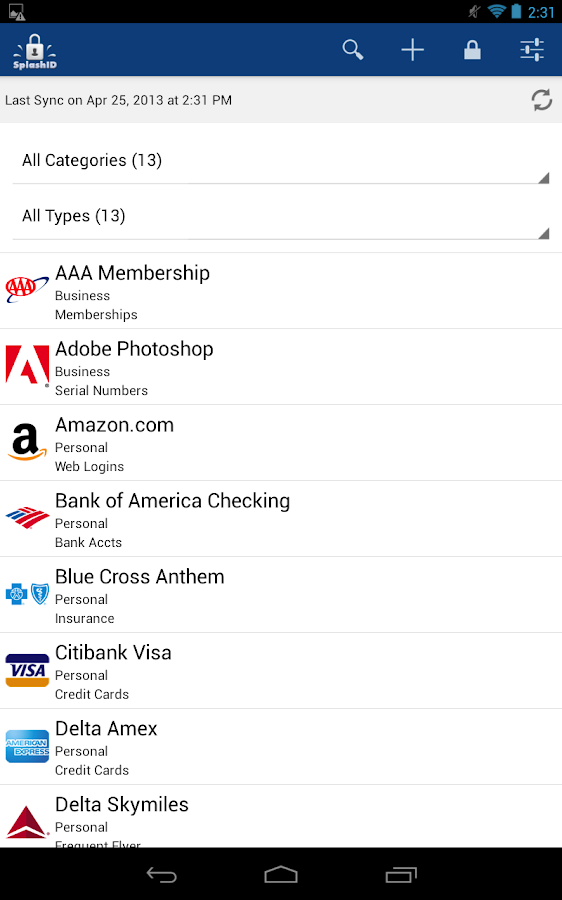
3. SplashID Safe


SplashID Safe offers three editions, each with various features for specific needs. The personal edition (available for a flat fee of $9.99 after a free trial) is available across all platforms, including Mac, Windows, Android, iOS, Blackberry and Windows Phone.
The teams edition (available for $5 per user per month) is great for small teams, and allows for users to share their records with collaborators securely.
The enterprise edition is for larger organizations, and it can be hosted on the client's own servers or via SplashID Safe's cloud syncing service. All editions feature identity protection, automatic backups, automatic password generation and anti-phishing web autofill.

You May Also like:

10 Best Messenger And chat app for Smartphone this year

4. Ilium eWallet


Ilium's eWallet app is available for both Mac and Windows, both of which sync to mobile devices, including iOS, Android, Blackberry and Windows Phone (prices start at $9.99). The app includes a built-in password generator and time-out locks for maximum security.
There is an option to back up your info and data to iCloud, and eWallet will also save your sites to prevent phishing.

5. Password Genie


Password Genie, available for Mac, Windows, iOS and Android, is another password manager available in free and premium versions. The app will save your login info and password, and autofill a login form the next time you visit the same site.
You can also create customized folders for different categories of sites, and you can sync the account with multiple users, desktops and devices. In addition, Password Genie has automated backups and will encrypt your personal info for extra protection.


more »

Wednesday, 21 August 2013

Best 20 free Android Apps


Carbon%2520for%2520twitter

1. Carbon for Twitter

Carbon puts all your Twitter content on one front page.


Baconreader_0

2. BaconReader

BaconReader touts a slideshow mode, multiple themes and a more attractive UI than Reddit itself (but that's not saying much).


Gmail

3. Gmail

Gmail is a no-brainer for email service on your phone. Manage multiple accounts and label conversations from within the mobile app.


Maps

4. Maps

iOS users know the Apple Maps app is still sitting in a folder somewhere, taking up space. Android users don't have that drama.


Flipboard

5. Flipboard

Flipboard collects the news from your social timelines into a clean, intuitive magazine experience customized to your interests. A new bookmarklet lets you add new content from your browser.


Chrome

6. Chrome

We can't overstate the awesomeness of syncing tabs between desktop and mobile, with Chrome.


Drive

7. Drive

If you ever need to take down some notes on the go, Drive ensures they'll be waiting for you in the cloud later.


Dropbox

8. Dropbox

Automatically sync your photos, documents and videos across all devices -- including your phone -- when you save an item to your Dropbox account.


Es%2520file%2520explorer

9. ES File Explorer

ES File Explorer functions as several apps in one: a file manager, application manager, task killer and a cloud storage service (it syncs with Drive, Dropbox and more).


Pocket

10. Pocket

Instead of wasting work time reading articles, save them for later with Pocket.


Evernote

11. Evernote

You can use Evernote to do anything: Plan your day, make wishlists, save recipes, write notes for later and more. People are still finding creative uses for it. You should take it everywhere.


Goodreads

12. Goodreads

Join a community of more than 8 million readers and draw from an enormous catalogue of suggested books.


Instagram

13. Instagram

There are a plethora of camera apps with fun filters on Android, but where are you going to follow Snoop Lion?


Memegenerator

14. Meme Generator

Choose from more than 500 meme pic options, including Bad Luck Brian, "Brace Yourselves" Ned Stark, Good Guy Greg, Ridiculously Photogenic Guy, Bear Grylls, Conspiracy Keanu and Condescending Wonka. Y U NO MAKE MOAR MEMES??!?


Nova%2520launcher

15. Nova Launcher

You can find plenty of cool home screen replacement apps on the Google Play store, but we really just included Nova Launcher to make sure Facebook Home didn't get a place on this list.


Pandora

16. Pandora

Pandora still provides a better Internet radio experience than Spotify, so if you don't want to pay for premium content, this is your best bet.


Pinterest

17. Pinterest

A clean, beautiful interface and quick pinning from your phone's camera characterize the Pinterest app.


Skype

18. Skype

Let your friends and family see your pretty face. Make free voice and video calls to anyone, on any platform that supports Skype.


Candycrush

19. Candy Crush Saga

Because until there's a way to get crack directly through your phone, this is the most addictive app ever.


Pixeldungeon

20. Pixel Dungeon

Go on a dungeon crawl with this charming (and challenging) little rogue-like game.
more »

Unordered List

© 2013 Limit Less. WP Theme-junkie converted by BloggerTheme9
Powered by Blogger - Back to top